How to set up a content approval workflow in Notion
Notion has no approval feature, but a database with one approval property, three saved views and a simple rule about who schedules does the job. Here's the setup a social team can run without another tool.

Approval is where most team content calendars break. Drafts get written in Notion, then pasted into Slack for a thumbs-up, then copied into a scheduling tool, and by Friday nobody is sure which version was the approved one. This guide sets up approval inside the same Notion database the posts live in, so the draft, the decision and the published post are one row.
How do you set up a content approval workflow in Notion?
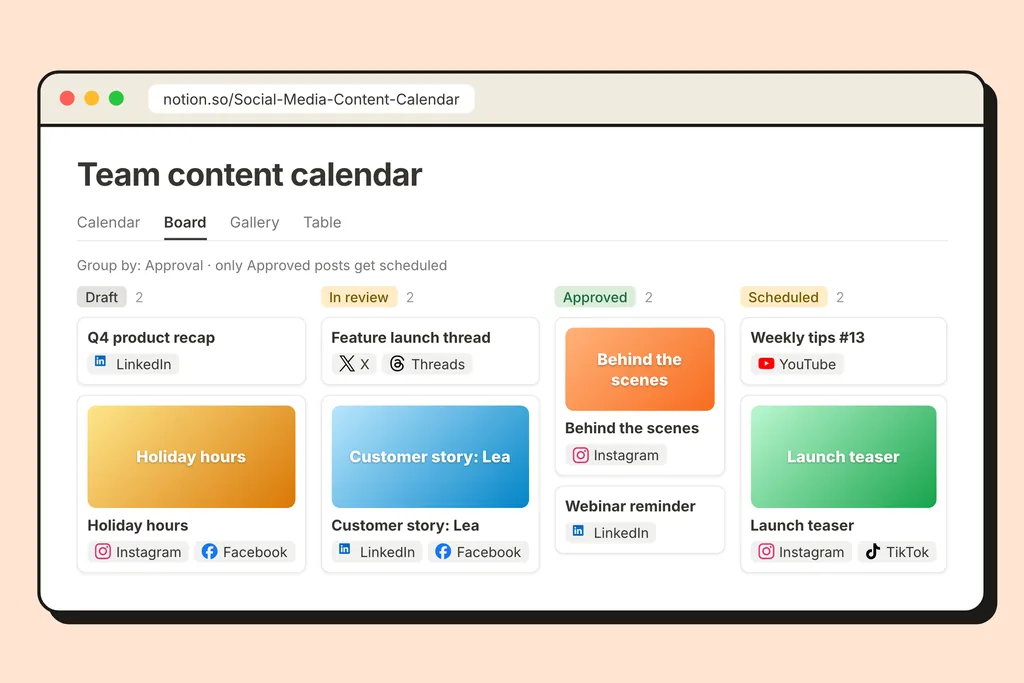
Add one approval property to your content database and agree on who moves it. Notion has no built-in approval feature, but a Status property with four stages (Draft, In review, Approved, Scheduled) covers it. Writers move a post to In review when it's ready. A reviewer reads it in place, comments on the row if something needs to change, and moves it to Approved. Then one person, usually the reviewer, schedules the approved rows. Three saved views make it work day to day: one for writers showing their drafts, one for reviewers showing everything In review, and one calendar of what's approved and going out. Because the post is published from the same row, nobody copies the approved text into another tool, so the version that goes out is the version that was approved. The whole setup takes about twenty minutes on an existing content calendar.
What does each role do?
Approval only works if everyone knows which move is theirs. Keep it to three roles, even if one person holds two of them:
- Writer. Creates the row, writes the caption in the page, attaches the media, picks the date and accounts. Moves the post to In review. Never schedules.
- Reviewer. Reads posts in review, comments on the row or approves. A reviewer who edits the text directly should say so in a comment, so the writer sees what changed.
- Scheduler. Ticks the approved rows so they're scheduled. In small teams this is the reviewer; in larger ones it's whoever owns the calendar.
The rule that holds it together is simple: only Approved posts get scheduled. Notion can't lock one property to one person, so this is a team convention, not a permission. The views below make it easy to follow.
Which views does an approval workflow need?
Three saved views on the same database, each filtered for one job:
- My drafts. Filter: Approval is Draft, and the row was created by me (or assigned to me, if you use a Person property). Writers live here.
- Waiting for review. Filter: Approval is In review. Sort by date, soonest first, so the post going out tomorrow is reviewed before the one going out next week. Reviewers live here.
- Approved calendar. A calendar view filtered to Approved and Scheduled. It's what the scheduler ticks from, and what the rest of the company looks at when they ask "what are we posting this week?".
A board grouped by the approval property is a good fourth view for a weekly check-in: it shows how many posts are stuck at each stage, which is usually the first sign the calendar is slipping. The reasons calendars stall are covered in why Notion content calendars get abandoned.
How do reviewers give feedback?
On the row, not in chat. Open the post and use Notion's comments on the page or on a specific line of the caption, and mention the writer so they're notified. The conversation stays attached to the post, so whoever picks it up next sees why it changed.
Two habits keep reviews quick:
- Review the post as it will appear. The caption is the page text and the media is on the row, so the reviewer sees the post, not a description of it.
- Approve or comment, never both. A post with open comments goes back to Draft, not forward to Approved. Otherwise "approved with changes" quietly becomes "published without them".
How do approved posts get published?
With a scheduler connected to the database, the scheduler role is a single tick. Each approved row has its date and accounts already set by the writer; ticking it schedules the post in about a minute, and at the chosen time it goes out to every account on the row and turns Posted.
Two details make this safe for a team:
- Late edits are picked up. The row is read again right before it publishes, so a typo fixed after scheduling still makes it into the post.
- A post can be pulled back. Untick an account on the row and that account's post is unscheduled, as long as it hasn't gone out yet.
If something goes wrong at publishing (a disconnected account, a file the platform refuses), the row says so in plain words, so the team sees it in the same place they approved the post. The getting started guide shows each column the scheduler adds.
How does this change for agencies and clients?
The workflow is the same; the reviewer is the client. Give each client their own database in a page shared with them, so they review and approve only their own posts. Our guide to running a content calendar per client covers that layout, and the agency page shows how many clients fit on each plan.
What should a team set up first?
In order, on the calendar you already have:
- Add the approval property with its four stages.
- Create the three views.
- Agree on who schedules, and write the rule at the top of the database: only Approved posts get scheduled.
- Run one week with it, then look at the board. If posts pile up in review, you need a second reviewer or an earlier deadline, not a new tool.
If the team also batches its content, batching a month in one sitting pairs well with this: drafts go into review in one go, and the reviewer approves a whole week at once.
The takeaway
An approval workflow doesn't need an approval tool. It needs one property, three views and one rule about who schedules. Keep the draft, the decision and the publishing on the same Notion row, and the post that goes out is always the one that was approved. The teams page covers how NotionScheduler fits a team that already works this way.