How agencies run a content calendar per client in Notion
One database per client, shared with that client, connected to that client's accounts. Here's how an agency lays out client content calendars in Notion, gets approvals without a portal, and keeps every client separate.

Agencies tend to end up with the same stack: briefs and timelines in Notion, drafts in Google Docs, approvals by email, and a scheduling tool the client has a login for and never opens. Every client means another copy of the same content in three places. This guide shows a simpler layout, one Notion content calendar per client, and how the posts get from that calendar to the client's accounts.
Can an agency run client content calendars in Notion?
Yes, and Notion is a good fit for it, because most agencies already share a workspace or a page with each client. The setup is one database per client: that client's posts, in that client's page, visible to that client and to no one else. The client sees a calendar of what's coming and reviews drafts where they already sit, so there's no export to a review tool and no separate login to manage. Your team works in the same rows. What Notion doesn't do on its own is publish anything. Connect each client's database to a scheduler that posts from Notion, and the approved rows go out to that client's accounts at the dates you agreed, while the database stays the single record of what was planned, approved and posted. Clients stay separate because their posts never share a database.
Why one database per client, not one big database?
A single database with a Client property looks tidier on day one. It stops being tidy the first time you share it.
- Sharing. Share a database with a client and they can see every row in it. If all clients live in one database, giving one client access means showing them everyone's posts. One database per client, inside that client's shared page, solves it by design.
- Mistakes. With one database, a post ticked for the wrong client's account is one misclick away. With separate databases, each one is only connected to its own client's accounts.
- Leaving. When a client moves on, their calendar is a page you can hand over or archive. Nothing has to be untangled from everyone else's history.
You lose one thing: a single view of every client's week. A simple dashboard page with a linked view of each client's calendar gives you that back for your own team, without exposing anything to clients.
How should each client's calendar be laid out?
Keep the structure identical across clients, so anyone on the team can open any calendar and know where things are. Start from the same template every time; our guide to building a Notion content calendar covers the database itself.
For each client, the useful views are:
- Calendar, for the client. It's what they'll look at, so keep it clean: titles and platforms, nothing else.
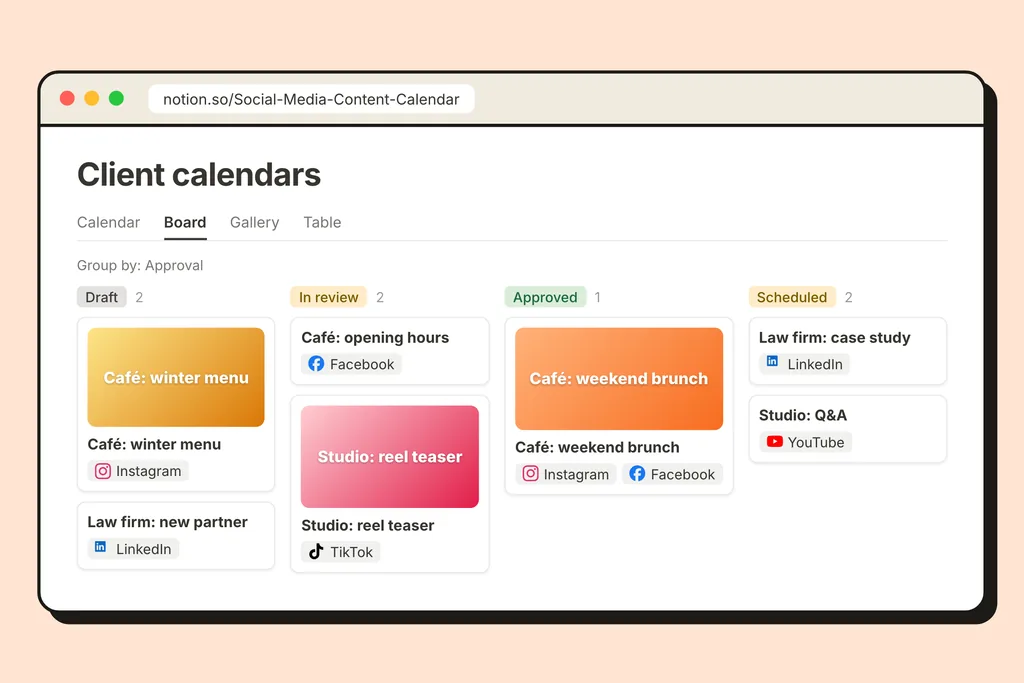
- Board by approval, for your team. Draft, In review, Approved, Scheduled. It shows at a glance what's waiting on the client.
- Table, for the work itself: captions, media, dates, accounts.
Add one property of your own for approval (a Status or Select with those stages). Keep it separate from the scheduler's own status column, which reports what happened after publishing, not what the client decided.
How do clients approve posts without another tool?
They change one property. A client opens their calendar, reads the post in context (caption, image, date), and moves it from In review to Approved, or leaves a comment on the row if something needs changing. Notion's comments and mentions already do the back-and-forth that email threads usually do, and the history stays attached to the post.
Only after that does someone on your team tick the box that schedules the row. That order matters. The approval is the client's decision; scheduling is yours, and it should only follow an approval. If a client changes their mind after a post is scheduled, edit the row: the text, media and date are read again right before publishing. To pull a post back entirely, untick the client's account on the row and it's unscheduled.
The full approval flow, with roles and a "waiting for me" view, is in our guide to an approval workflow in Notion.
How do posts get from each calendar to the client's accounts?
You connect each client's social accounts once, then connect each client's database. From then on, a row in Client A's calendar can only be published to Client A's accounts, and the same goes for every other client.
On each row, the account column lists that client's connected accounts. Pick one or several, set the date, tick the row, and it's scheduled in about a minute. If a client's account gets disconnected (a password change, a lapsed permission), the row says so in plain words and the posts for that account wait, instead of failing quietly. Reconnect it and they're picked up again.
How many clients fit on one plan?
With one database per client, the number of databases your plan allows is the number of clients you can run. The plans run from one database on the free plan to ten on the Agency plan, with up to 100 social accounts shared across them however you like. The agency page has the table, and pricing has the full limits.
There are no per-seat fees on our side. Your team and your clients work in Notion, with the access you already give them there.
What does a week look like?
A typical rhythm for a three-client agency:
- Monday: drafts for the week go into each client's calendar, moved to In review.
- Tuesday and Wednesday: clients review in their calendar, comment or approve.
- Thursday: the team fixes comments, ticks the approved rows. Everything for the next week is scheduled.
- Friday: a quick look at last week's Posted rows, with the numbers synced back, for the client report.
Batching the drafts in one sitting per client, as in batching a month of content, makes Monday shorter than it sounds.
The takeaway
The agency setup that holds up is the boring one: one database per client, one approval property, one person who ticks the rows. The client gets a calendar instead of a portal, your team stops copying posts between tools, and each client's work stays in its own place from draft to published. The getting started guide shows each column the scheduler adds, so you can set up the first client's calendar in an afternoon.