How to schedule social media posts from ChatGPT with Notion
ChatGPT can't post to Instagram or LinkedIn, but it can write in Notion. Connect Notion to ChatGPT, point it at the database NotionScheduler publishes from, and the post ChatGPT writes goes out on time. Setup, plans, prompts and limits.

Most posts written with ChatGPT still leave the chat the same way: copy, open the app, paste, pick a time. If your content calendar lives in Notion, ChatGPT can skip that step. Connect Notion to ChatGPT, and it can write the post straight into your calendar as a row. NotionScheduler then publishes the row on time. Here is how to connect the two, which ChatGPT plans can write to Notion, the prompts that work, and what to keep doing by hand.
Can ChatGPT schedule social media posts?
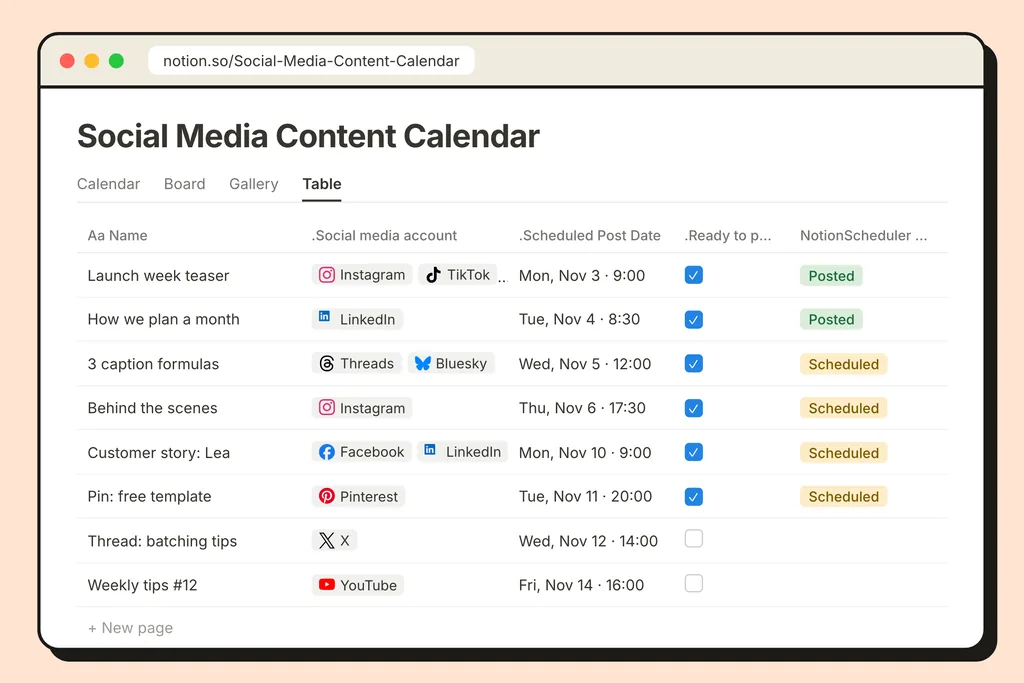
Not on its own, but it can through Notion. ChatGPT has no access to your Instagram, LinkedIn or X accounts. What it can do, once Notion is connected, is work with pages in your Notion workspace, and on plans that allow it, create and edit them, including rows in a database. If that database is connected to NotionScheduler, a row is a post: the page text is the caption, and the row's properties hold the date, the accounts, the media and the first comment. You ask ChatGPT for a post on your LinkedIn page for Tuesday at 9am. It creates the row with everything filled in, then you (or ChatGPT) tick "Ready to post?". In about a minute NotionScheduler picks the row up, marks it Scheduled, and publishes it at the chosen time to every account on the row. ChatGPT never talks to the social networks. It only writes in Notion, and the publishing happens from your calendar.
What do you need?
Three things:
- A Notion database connected to NotionScheduler, with your social accounts connected. The free template comes ready, and the getting started guide walks through each column.
- Notion connected to ChatGPT, with permission to write. This is the part that depends on your ChatGPT plan, covered in the next section.
- Membership of the Notion workspace. Notion only lets workspace members connect its MCP server, not guests. On the Notion side, it works on every Notion plan.
Nothing changes on the NotionScheduler side. A row ChatGPT writes is a row like any other: same checks, same statuses, and it counts toward your plan's posts the same way.
How do you connect Notion to ChatGPT?
There are two ways in, and they don't give the same access.
- The Notion app in ChatGPT. Open Settings, then Plugins, find Notion and select Connect (or Install plugin), then sign in to Notion and approve the workspace. OpenAI describes this app first as a way to search and read your pages. Whether it can also create or update pages depends on your plan, your workspace settings and the approvals your admin requires, so check what your connection offers before you rely on it.
- Notion's MCP server as a custom connection. In Plugins, select the plus button, then Add custom MCP server, and enter
https://mcp.notion.com/mcpas the connection, then sign in to Notion. OpenAI documents full MCP support, write actions included, for ChatGPT Business and Enterprise/Edu on ChatGPT web. Pro accounts can add custom servers with read and fetch permissions only. Custom servers are web only, not mobile.
The quickest way to know where you stand: ask ChatGPT to create a test row in your calendar with "Ready to post?" left unticked. If the row appears in Notion, your connection can write. If ChatGPT says it can only read, it can still help you draft, and you paste the text into the row yourself.
Plan details move quickly. OpenAI's guide to custom MCP servers and its Notion app page have the current rules.
How does ChatGPT fill in a post row?
With the same columns you'd fill in by hand:
- Page title: your label for the post. Pinterest also uses it as the Pin title.
- Page content: the caption, exactly as it will be posted.
- .Scheduled Post Date: the date and time, with your time zone.
- .Social media account: one or more of your connected accounts, picked from the list.
- .Media & Files: the image or video, uploaded to Notion.
- .First Comment: optional, on platforms that take one.
- .Ready to post?: ticked when the post should be scheduled.
Ask ChatGPT to look at the database before it writes, so it uses your real account names from the ".Social media account" options instead of inventing them. The Notion side of this is the same one we tested with Claude: a row created through Notion's MCP passed the same checks as a row typed by hand.
What should you ask ChatGPT?
Name the database, the account, the time and whether to tick. A prompt that works:
Look at my Notion database "Social media calendar" first, then
create a post for Tuesday 2 December at 9:00 (Europe/Paris) on my
LinkedIn page. Write the caption about [topic], under 1,300
characters, with an empty paragraph between paragraphs. Leave
"Ready to post?" unticked so I can review it.
Three details make prompts reliable:
- Name the time zone. "9am" alone is ambiguous to a server. "9:00 Europe/Paris" makes ChatGPT write the date with its offset, so the post goes out at your 9am.
- Ask for empty paragraphs between paragraphs. Each block of the Notion page becomes one line of the caption, so two paragraphs written back to back are posted with a single line break. An empty paragraph between them gives the blank line most captions use.
- Batch. "Create next week's five LinkedIn posts, one per weekday at 8:30" works the same way. Batching a month of content in one sitting covers how to plan the batch.
ChatGPT may ask you to confirm before it writes to Notion. How often depends on the app's permission setting in ChatGPT, from "Always ask" to "Allow all actions". For a calendar that publishes to your real accounts, asking first is a sensible default.
Should ChatGPT tick "Ready to post?" itself?
It can, but at first we'd rather it didn't. Once a post is live it can't be taken back, and reviewing takes a minute: open the calendar, read the rows ChatGPT created, tick the ones you're happy with. Once you trust your prompts, letting ChatGPT tick is fine. A scheduled post can still be pulled back before it goes out: untick its account on the row and that account's post is unscheduled.
Can ChatGPT attach images and videos?
Plan on adding them yourself. NotionScheduler only publishes media stored in Notion, not files linked from elsewhere. Notion's MCP server can take file uploads, but the assistant's app has to send the file, and OpenAI's documentation doesn't say ChatGPT does. An image you paste into the chat stays in ChatGPT.
The workflow that works today: let ChatGPT create the row with the caption, date, accounts and first comment, then drag the image or video into ".Media & Files" in Notion and tick the row. Text-only posts, such as most LinkedIn, X, Threads and Bluesky posts, need no file and go all the way from the chat. Either way, NotionScheduler checks the post against each platform's rules when the row is ticked, so a problem is flagged on the row, not at publishing time.
How do you know the post went out?
Ask ChatGPT, if your connection can read the database. NotionScheduler writes back to the same row: "NotionScheduler Status" moves to Scheduled, then to Posted (or Partial, or Error), and "NotionScheduler Comments" says what happened in plain words, account by account.
The same goes for performance. Views, likes, comments, shares and saves are synced into the row after publishing, so "which of last month's LinkedIn posts got the most views?" is a question ChatGPT can answer from your own calendar.
What if you use Claude too?
The Notion side doesn't change: same database, same columns, same prompts. Only the connection does. Our guide to scheduling posts from Claude with Notion MCP covers that setup, including uploading media from your files.
The takeaway
You don't need a separate posting tool to publish from ChatGPT. Connect Notion, check that your connection can create pages, and point ChatGPT at the database NotionScheduler already publishes from. Let it write the rows, add the media yourself, and tick what you're happy with. The getting started guide covers the database side if you haven't set it up yet.